Key takeaways
- 100W power delivery with DisplayPort and HDMI
- Quad-display support listed
- Plug-and-play and office-ready
Quick answer: The best usb c docks under $200 start with the Dell Pro Thunderbolt 4 Smart Dock SD25TB4, which lists 130W power delivery, four 4K displays and 2.5GbE. Dell WD25, Anker Prime, Anker Nano and two WAVLINK models follow for office, travel and multi-monitor needs. Every dock below is listed at or under $200.
This list is compared from listing specifications, not from using each dock, so the notes below stay with what the pages state and call out what they leave out. At this level you move from simple hubs to proper docks with high power budgets, multi-monitor output and fast Ethernet. The six picks cover business docks, Thunderbolt, travel flexibility and DisplayLink. Read them in order, then use the buying checklist to match the dock to your laptop and screens, and check the maker page for any figure a listing leaves out. A dock sits on the desk for years and outlives several laptops, so favour the port standard and power budget that your next laptop is also likely to need, not just the one on your desk today.
Quick Comparison
| Model | Key specs (per listing) | Best for |
|---|---|---|
| Dell WD25 | 100W PD, DP and HDMI, quad display, Ethernet | Office and Dell laptops |
| Dell SD25TB4 | 130W, 4 x 4K, 2 x Thunderbolt 4, 2.5GbE, Wi-Fi | Power users, fast storage |
| Anker Prime 14-in-1 | 160W max, dual 4K HDMI, 10Gbps | Heavier laptops |
| Anker Nano 13-in-1 | 3 displays, detachable hub, 100W PD | Desk plus travel |
| WAVLINK Thunderbolt 4 | Thunderbolt certified, 100W PD, 2.5G Ethernet | MacBook users |
| WAVLINK DisplayLink | 3 monitors, 6 x 10Gbps USB, driver required | Triple-monitor spreadsheets |
1. Dell Pro Laptop Docking Station WD25
USB-C | 100W power delivery | DisplayPort and HDMI | Ethernet | USB-A and USB-C ports | quad display | plug and play
As an Amazon Associate we earn from qualifying purchases at no extra cost to you.
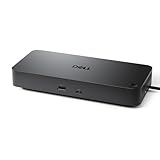
The WD25 is the straightforward business dock of this set. The listing names a USB-C connection, 100W power delivery, DisplayPort and HDMI outputs, Ethernet, USB-A and USB-C ports and quad-display support, in a plug-and-play, office-ready body. It is a good match for a Dell laptop in a company-style setup because a single cable powers, connects and extends the screen. The listing does not state the video resolution per display or the data rate of its ports, and quad displays depend on laptop support. It suits an office worker who wants a dependable dock with a broad port set and no drivers.
Pros
- 100W power delivery with DisplayPort and HDMI
- Quad-display support listed
- Plug-and-play and office-ready
Cons
- Per-display resolution and data rates are not listed
- Quad-display output depends on laptop support
2. Dell Pro Thunderbolt 4 Smart Dock SD25TB4
130W | 4 displays at 4K | 2 x DP 1.4 | HDMI 2.1 | 2 x Thunderbolt 4 | 2.5GbE | Wi-Fi

The SD25TB4 is the high end of this roundup, and its spec sheet shows it: 130W power delivery, four 4K displays, two DisplayPort 1.4 outputs, HDMI 2.1, two Thunderbolt 4 ports, 2.5GbE and a Wi-Fi module. The 130W figure covers many performance laptops that want more than 100W, and Thunderbolt 4 ports let you chain fast storage or a monitor. The listing mentions a sustainable design, but gives no port-by-port USB speeds, and the dock sits near the top of the range. It suits a power user with a Thunderbolt laptop, multiple displays and fast storage who would rather pay once than add adapters.
Pros
- 130W power delivery and four 4K displays
- Two Thunderbolt 4 ports, HDMI 2.1 and 2.5GbE
- Wi-Fi module listed
Cons
- Sits near the top of the budget
- Individual USB port speeds are not listed
3. Anker Prime 14-in-1 Docking Station
Dual 4K HDMI | 160W max output | 10Gbps data | smart interface | audio | Ethernet | 14 ports

The Anker Prime lists the highest power budget of the group, 160W of maximum output, together with dual 4K HDMI, 10Gbps data transfer, audio and Ethernet across 14 ports. A larger power budget can charge a heavier laptop while powering phones and accessories, and the listing also names a smart interface, though it does not explain what it does. The listing mentions Dell, HP and Lenovo laptops but does not state the per-port power split, so check the maker page if you plan to charge several devices at once. It is more expensive than a basic hub, so it fits a workstation desk, not casual use. Choose it for a heavier laptop and a dual-monitor desk.
Pros
- 160W maximum output
- Dual 4K HDMI and 10Gbps data
- 14 ports with audio and Ethernet
Cons
- Per-port power split is not listed
- Priced above hubs with fewer ports
4. Anker Nano 13-in-1 Laptop Docking Station
3 displays (2 HDMI + 1 DP) | detachable 6-in-1 hub | 10Gbps USB-C | 3 USB-A | 100W max PD | Ethernet

Anker Nano’s trick is a detachable six-in-one hub. The listing describes a 13-in-1 dock with three displays through two HDMI ports and one DisplayPort, a 10Gbps USB-C port, three USB-A ports, audio, SD and TF slots, Ethernet and 100W maximum power delivery, and a smaller hub that detaches for travel. That makes it a flexible choice for someone who moves between a desk and a laptop bag. Three-display output depends on your laptop and the operating system, and the listing does not mention the resolution for each screen. It suits a hybrid worker who wants a triple-monitor desk but also needs a lighter hub for the road.
Pros
- Detachable 6-in-1 hub for travel
- Three displays through 2 HDMI and 1 DP
- 10Gbps USB-C and 100W max PD
Cons
- Three-display output depends on laptop support
- Per-screen resolution is not listed
5. WAVLINK Thunderbolt 4 Dock with Dual Monitor
Thunderbolt certified | 4K HDMI dual monitor | 100W PD | 4 USB ports | 2.5G Ethernet | SD and microSD | driverless

WAVLINK’s Thunderbolt 4 dock is the value route into Thunderbolt in this roundup. The listing names a Thunderbolt certification, 4K HDMI for dual monitors, 100W power delivery, four USB ports, 2.5G Ethernet and SD and microSD slots, with driverless setup for M4 and M5 MacBooks. Driverless matters on a Mac, where some docks need extra software. The listing is vague on the exact display layout and gives no USB speeds, so confirm what the two monitors can run, and note that Thunderbolt benefits only show with a compatible laptop. It suits a MacBook user who wants a certified Thunderbolt dock with fast Ethernet without paying for Dell or Anker flagships.
Pros
- Thunderbolt certified and driverless
- 100W PD with 2.5G Ethernet
- SD and microSD slots
Cons
- Display layout and USB speeds are not detailed
- Only helps if your laptop supports Thunderbolt
6. WAVLINK DisplayLink Docking Station for Three Monitors
3 monitors | 3 x HDMI / 2 x DP | 100W PD | 6 x 10Gbps USB | Ethernet | driver install required

This WAVLINK dock uses DisplayLink to drive three monitors through three HDMI and two DisplayPort outputs, with 100W power delivery, six 10Gbps USB ports and Ethernet. DisplayLink works by compressing video over USB, so it can drive more screens than a laptop would support natively, including on a Mac with M-series chips that limit external displays. The listing says driver installation is required, which adds a step and may not suit locked-down work laptops. Video is compressed, so fast-moving content may look different from a native output. It suits a Mac or Windows user who needs three screens for spreadsheets and documents more than for video editing.
Pros
- Three monitors through 3 HDMI and 2 DP outputs
- Six 10Gbps USB ports and 100W PD
- Works around native display limits through DisplayLink
Cons
- Driver installation required, per the listing
- Compressed video may not suit fast motion or colour work
How to Choose USB C Docks Under $200
Match the dock to your laptop port
Thunderbolt 4 docks need a Thunderbolt or USB4 laptop to show their full benefit. A plain USB-C laptop works but may lose the extra displays and speeds. Check your laptop manual for its port type before you spend.
Count displays and check the limit
Many laptops, especially Macs with a base M-series chip, support only one or two external screens natively. A DisplayLink dock can add more but needs a driver. Decide how many screens you need, then check both the dock and your laptop, because a dock that lists three or four displays only delivers them if the laptop and its operating system allow it.
Choose the power delivery you need
Thin laptops often draw 65W to 100W, while performance laptops may want 130W or more. A dock that offers more than your laptop needs is fine, but one that offers less will charge slowly under load, so look at the charger rating printed on your laptop power brick before comparing docks.
Check Ethernet and port speeds
2.5G Ethernet helps on faster home networks, and 10Gbps USB ports suit external SSDs. If a listing omits speeds, treat that as a reason to confirm them on the maker page before buying.
Fit by Room and Use
USB C Docks for Home Office
The Dell WD25 and the Anker Prime are strong home-office picks for one-cable setups, while the WAVLINK Thunderbolt 4 suits a MacBook user who wants a driverless dock with fast Ethernet.
USB C Docks for Small Spaces
The Anker Nano has a detachable hub that you can take away, leaving a smaller dock on the desk. That helps in a shared or small room where the workstation has to be packed up each evening.
USB C Docks for Gaming
For handhelds or laptop gaming, a Thunderbolt 4 dock gives the most headroom for display and Ethernet. The Dell SD25TB4 lists HDMI 2.1 and 2.5GbE, but check that your laptop and monitor can use them.
FAQ
Do I need a Thunderbolt dock?
Only if your laptop has Thunderbolt or USB4 and you want the highest data and display bandwidth. A standard USB-C dock is enough for many offices.
Which dock here supports three monitors?
The Anker Nano lists three displays, and the WAVLINK DisplayLink lists three monitors. Check your laptop and operating system for the actual number of screens supported.
What is DisplayLink?
DisplayLink sends compressed video over USB and can add more screens than a laptop supports natively. It needs a driver, so confirm that your work laptop allows installation.
How much power delivery do I need?
Match or exceed your laptop charger rating. Thin laptops often need 65W to 100W, while performance models may want 130W or more. The Dell SD25TB4 lists 130W.
Will these docks work with a MacBook?
The WAVLINK Thunderbolt 4 listing names M4 and M5 MacBook support and driverless setup. Check the maker page for the others, and for the display limits of your Mac.
Last updated: November 2026
More from Amazon
Programs that pair well with the guide above. Offers and eligibility are set by Amazon and may change.
Collect the home and kitchen items you want in one registry that guests can shop from.
Create a wedding registrySet up recurring deliveries of everyday items on eligible products. Terms and savings are set by Amazon.
Explore Subscribe & SaveFree shipping on eligible items, Prime Video and more. Eligible new members can start with a free trial.
Start a Prime free trialAudiobooks and podcasts to listen to on the go. Eligible new members can start with a free trial.
Try Audible freeAs an Amazon Associate we earn from qualifying purchases.