Our Short List of 3

- Best for: Home users and photographers who swap drives often and want fast access without tools.
- 4-bay USB 3.2 Gen 2 docking station
- Transfer speed: up to 10Gbps over USB-C
- Tray-less hot-swap bays
- Aluminum enclosure with cooling fan

- Best for: Photographers and video editors archiving large mixed-drive collections at high speed.
- 4-bay USB 3.2 Gen 2 Type-C enclosure
- Transfer speed: up to 10Gbps
- Transfer rate: up to 1016MB/s with four HDDs
- Hot-swappable bays
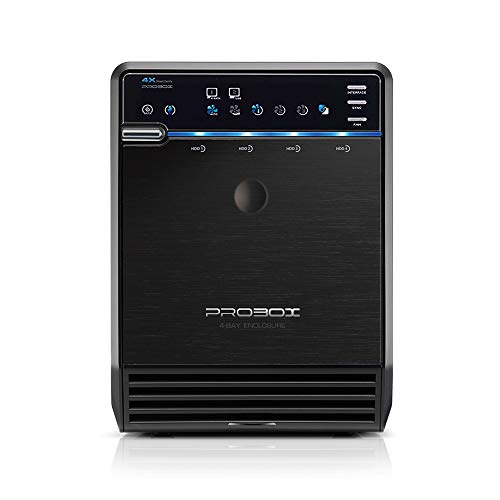
- Best for: Budget-minded buyers building a backup station from drives they already own.
- 4-bay enclosure with USB 3.0 and eSATA
- Accepts 3.5-inch SATA drives up to 30TB per drive
- Smart fan with adjustable speed
- Transfer speed: 6Gbps SATA
All 3 Picks at a Glance
| Product | Specs | Action |
|---|---|---|
| Sabrent DS-SC4B 4-Bay USB 3.2 Gen 2 Docking Station |
| Check price on Amazon |
| TerraMaster D4-320 4-Bay USB-C Enclosure |
| Check price on Amazon |
| Mediasonic ProBox HF2-SU3S3 4-Bay Enclosure |
| Check price on Amazon |
Key takeaways
- The best solution for storage with hard drives of different sizes is a multi-bay enclosure that mixes drive sizes, capacities, and brands in one dock.
A drawer full of hard drives in different sizes is a familiar problem: a 2TB drive from an old desktop, a 10TB drive from a backup, and a couple of smaller ones from laptops, all holding files you still need. The answer is not another single external drive but a multi-bay enclosure that takes several drives at once, mixes sizes and capacities, and presents them to the computer through one cable. The right enclosure turns a pile of loose drives into a working storage system.
This guide is for home users consolidating old drives, photographers archiving years of work, and small-office owners who need a simple backup station. Every enclosure below was chosen from the names and specifications shown on its Amazon page, with a focus on bay count, connection speed, drive compatibility, and cooling. Bay count, interface speed, and how the enclosure handles mixed drives matter most, so those are the details this guide weighs first.
Quick Picks
As an Amazon Associate we earn from qualifying purchases
| Product | Best for | Key spec from title |
|---|---|---|
| Sabrent DS-SC4B 4-Bay Docking Station | Fast swapping of mixed drives | 4-bay USB 3.2 Gen 2, 10Gbps |
| TerraMaster D4-320 4-Bay Enclosure | Large mixed-drive archives | 4-bay USB-C, up to 88TB total |
| Mediasonic ProBox HF2-SU3S3 4-Bay Enclosure | Budget multi-drive backup storage | 4-bay USB 3.0 and eSATA |
How to Choose
Bay Count and Drive Sizes
Bay count decides how many drives the enclosure can hold, and four bays suit most home archives without turning the unit into a server. Each bay should accept standard 3.5-inch SATA drives, since those are the drives most people have lying around, and a tray-less design makes swapping drives quick. Mixing sizes is the point: one bay can hold a small old drive while another holds a large new one, and the enclosure should not care about the difference. Check the maximum capacity per bay as well, since a limit of 20TB or 22TB per drive sets the ceiling for the whole system. An empty bay holds the next retired drive.
Connection Speed and Interface
The interface decides how fast files move, and USB 3.2 Gen 2 at 10Gbps is the current sweet spot for a four-bay enclosure. A slower USB 3.0 connection still works for backups and archiving, but it becomes a bottleneck when moving large video files or a whole photo library. USB-C is the modern connector, while eSATA suits older machines that still have the port. Match the interface to the computer the enclosure will live on, and remember that the slowest link in the chain, cable included, sets the real speed. For most home archives, 10Gbps is plenty, since the hard drives themselves top out well below that speed.
Cooling and Noise
Four spinning drives generate heat, and heat shortens drive life, so cooling deserves attention. A fan that moves air across the drives keeps temperatures down, and a smart fan that speeds up under load is quieter than one running flat out all the time. An aluminum case also helps by shedding heat through its walls. Listen for noise as well: an enclosure that sits on a desk should hum rather than whine, so a large slow fan beats a small fast one. Good cooling protects the drives inside and keeps the room pleasant. Place the enclosure where air can reach it, and keep the vents clear of papers and cables.
Hot-Swap and Power Control
Hot-swap bays let you change a drive without powering the whole enclosure down, which matters when one drive in the set needs replacing. Individual power switches go further, letting you spin down a bay you are not using, which saves power and wear. Look for a design where each drive has its own switch and its own status light, so you can see at a glance which bays are active. A tray-less bay makes the swap faster still, since there is no caddy to unscrew and no screws to lose. A clear label on each bay also helps, so you always know which drive you are about to remove.
The 3 Best Options
Sabrent DS-SC4B 4-Bay USB 3.2 Gen 2 Docking Station
- Best for: Home users and photographers who swap drives often and want fast access without tools.
- 4-bay USB 3.2 Gen 2 docking station
- Transfer speed: up to 10Gbps over USB-C
- Tray-less hot-swap bays
- Aluminum enclosure with cooling fan
Home users and photographers who swap drives often and want fast access without tools.
The docking station has no RAID support, so it suits separate-drive storage rather than mirrored or striped arrays.
The Sabrent DS-SC4B is a four-bay docking station built for people who swap drives often. Its tray-less bays let a drive slide in and out without tools, and the USB 3.2 Gen 2 connection moves data at up to 10Gbps, which keeps large file transfers moving. Each bay has its own power switch, so idle drives can spin down while the others keep working, and the aluminum case with a cooling fan keeps four spinning drives at a safe temperature. With support for up to 80TB across four 20TB drives, it handles a serious home archive without fuss. Setup takes minutes on most systems.
Watch out for: The docking station has no RAID support, so it suits separate-drive storage rather than mirrored or striped arrays.
TerraMaster D4-320 4-Bay USB-C Enclosure
- Best for: Photographers and video editors archiving large mixed-drive collections at high speed.
- 4-bay USB 3.2 Gen 2 Type-C enclosure
- Transfer speed: up to 10Gbps
- Transfer rate: up to 1016MB/s with four HDDs
- Hot-swappable bays
Photographers and video editors archiving large mixed-drive collections at high speed.
The enclosure ships without drives, so budget for the drives separately if you do not already own them.
The TerraMaster D4-320 is a four-bay enclosure aimed at large mixed archives. Its USB 3.2 Gen 2 Type-C connection runs at 10Gbps, and the maker lists transfer speeds up to 1016MB/s with four hard drives installed, which is quick enough for video editing straight from the enclosure. Hot-swappable bays accept drives up to 22TB each, giving a total capacity of 88TB across the four bays. The diskless design means you bring your own drives, which suits anyone consolidating drives they already own, and the compact case fits on a desk beside the computer. It also keeps the desk tidy.
Watch out for: The enclosure ships without drives, so budget for the drives separately if you do not already own them.
Mediasonic ProBox HF2-SU3S3 4-Bay Enclosure
- Best for: Budget-minded buyers building a backup station from drives they already own.
- 4-bay enclosure with USB 3.0 and eSATA
- Accepts 3.5-inch SATA drives up to 30TB per drive
- Smart fan with adjustable speed
- Transfer speed: 6Gbps SATA
Budget-minded buyers building a backup station from drives they already own.
USB 3.0 is slower than the USB 3.2 Gen 2 enclosures here, so large transfers take longer.
The Mediasonic ProBox HF2-SU3S3 is a four-bay enclosure for buyers who want multi-drive storage without paying for the fastest interface. Its USB 3.0 and eSATA connections cover both modern and older computers, and each bay accepts a 3.5-inch SATA drive up to 30TB, which is generous for a unit in this class. A smart fan adjusts its speed to the temperature inside the case, keeping four drives cool without constant noise, and the 6Gbps SATA link inside the enclosure keeps each drive moving at full speed. It is a practical pick for backups and archiving. The smart fan stays quiet during overnight backups.
Watch out for: USB 3.0 is slower than the USB 3.2 Gen 2 enclosures here, so large transfers take longer.
Which One Fits Your Situation
For Frequent Drive Swapping
Pick the Sabrent if drives come in and out of the enclosure often. The tray-less bays need no tools and no caddies, so a swap takes seconds, and the individual power switches let you spin down bays you are not using. The 10Gbps connection keeps transfers quick even when several drives are active at once. The tray-less bays also mean no screws to lose, which matters when drives change hands every week.
For a Large Photo or Video Archive
Pick the TerraMaster if the archive is large and still growing. The 88TB ceiling across four 22TB drives gives room for years of photos and video, and the fast USB-C connection handles editing directly from the enclosure. Hot-swap bays mean a failing drive can be replaced without shutting the whole archive down. The fast connection also means editing video straight from the enclosure, without copying files to the computer first.
For Backups on a Budget
Pick the Mediasonic if the job is backups and archiving rather than speed. The USB 3.0 and eSATA connections cover older machines, the 30TB-per-drive limit is generous, and the smart fan keeps the unit quiet on a desk. It does the job for less than the faster enclosures in this guide. Set it up once, schedule the backups, and let it run in the background while you get on with other work.
For Mixed Old and New Drives
Pick any of the three for a mix of old and new drives, since each bay works independently and each drive keeps its own size and capacity. The Sabrent suits frequent swapping, the TerraMaster suits the biggest collections, and the Mediasonic suits a set-and-forget backup station. Match the enclosure to how often you touch the drives. Label each drive as you install it, so you can find the right one months later.
Common Mistakes
- Buying a single-drive enclosure when the real problem is several drives in different sizes that need one home.
- Ignoring the per-bay capacity limit and finding the largest drive will not work in the unit after you have already bought it.
- Choosing an enclosure with an interface the computer cannot use at full speed and living with slow transfers for years.
- Skipping cooling and letting four drives cook in a sealed box with no airflow, which shortens the life of every drive inside.
- Assuming every multi-bay enclosure supports RAID, when several models present each drive separately with no mirroring or striping at all.
Frequently Asked Questions
Can a multi-bay enclosure mix drive sizes?
Yes, each bay in a multi-bay enclosure works independently, so a small old drive can sit next to a large new one without any conflict. The enclosure presents each drive separately to the computer, and the only limits are the per-bay capacity and the drive’s own size and interface. Mixing brands works the same way. Each bay also accepts a different brand.
Do I need RAID for a multi-bay enclosure?
No, RAID is optional and several enclosures, including the Sabrent here, present each drive separately with no RAID at all. That suits archiving and backups where each drive holds different files. If you want mirroring or striping, choose an enclosure that lists RAID support and confirm which RAID levels it supports. Separate drives are also easy to remove and carry.
How fast is a USB 3.2 Gen 2 enclosure?
A USB 3.2 Gen 2 connection runs at up to 10Gbps, which is fast enough for large file transfers and for editing video from the enclosure. Real speed depends on the drives inside: hard drives top out well below the interface limit, so the enclosure rarely becomes the bottleneck. Use the cable that comes with the unit for best results.
Can I hot-swap drives in a multi-bay enclosure?
Yes, if the enclosure lists hot-swap support, you can remove and insert a drive while the unit stays powered on. Eject the drive safely in the operating system first, then pull it from the bay and slide the replacement in. Individual power switches let you spin down a single bay before swapping its drive. Label the bays first.
More from Amazon
Programs that pair well with the guide above. Offers and eligibility are set by Amazon and may change.
Collect the home and kitchen items you want in one registry that guests can shop from.
Create a wedding registrySet up recurring deliveries of everyday items on eligible products. Terms and savings are set by Amazon.
Explore Subscribe & SaveFree shipping on eligible items, Prime Video and more. Eligible new members can start with a free trial.
Start a Prime free trialAudiobooks and podcasts to listen to on the go. Eligible new members can start with a free trial.
Try Audible freeAs an Amazon Associate we earn from qualifying purchases.